What is Hot Horse?
Hot Horse tells you whether conditions are safe and comfortable for your horse right now — and in the hours and days ahead. It uses weather data and your horse's individual characteristics to generate a personalised recommendation for each horse at each saved location.
Switch between Heat Index mode — which shows WBGT-based riding safety recommendations — and Blanket mode, which recommends the right blanket weight for current and upcoming conditions.
Your horses and addresses stay on your device and in your personal iCloud account. No data is ever seen by Alelin Apps.
First Launch & Onboarding
When you open Hot Horse for the first time, a welcome screen asks whether you are new to the app or a returning user.
New to Hot Horse
You will be guided to enter your first address. Type a place name or street address into the search field and select the matching result. A map pin confirms the location. Once saved, the app is ready to use.
Returning User (iCloud Sync)
The app will search iCloud for up to 30 seconds while animated text counts down. If your horses are found, a celebration screen appears and you are taken straight into the app. If they are not found within 30 seconds you can try again or start fresh — your data will appear automatically once iCloud finishes syncing.
Recommendations
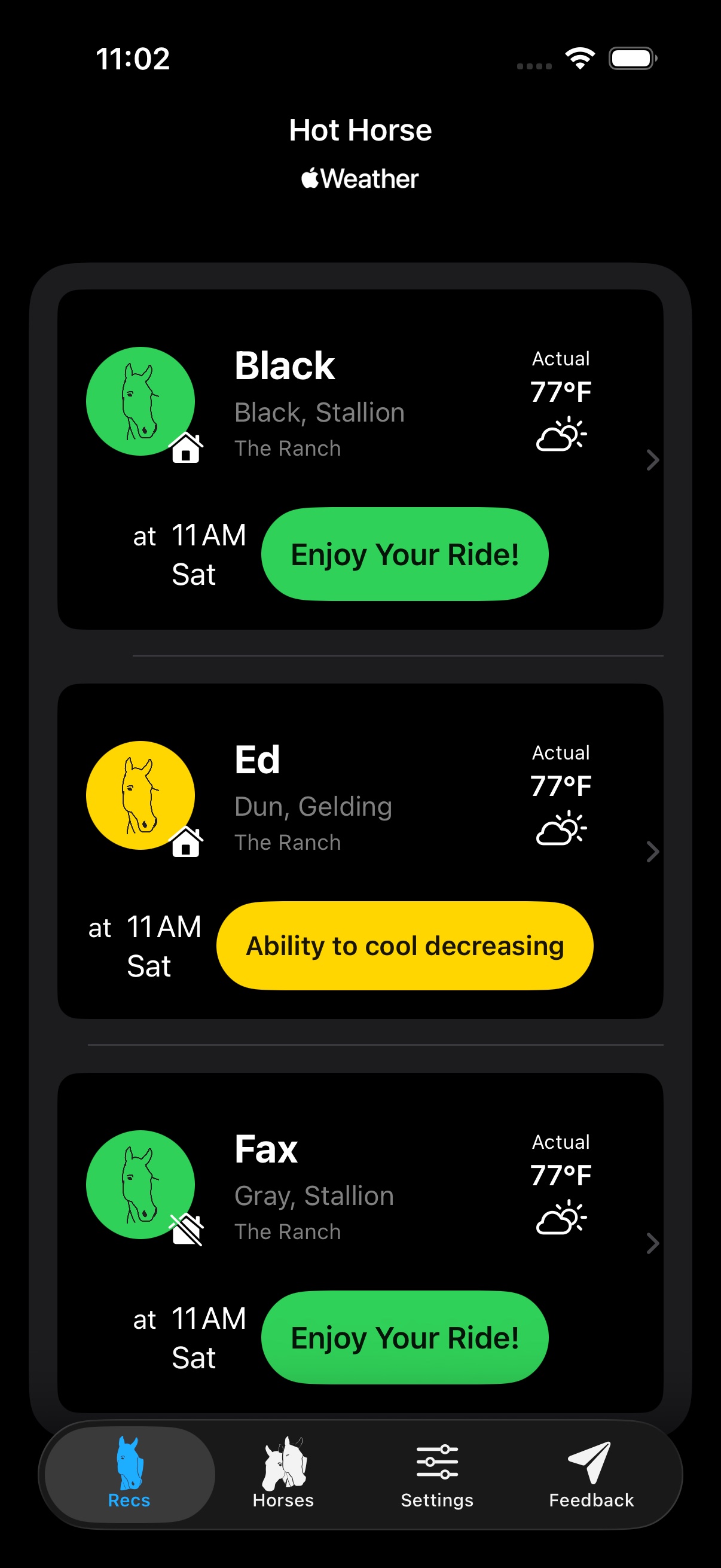
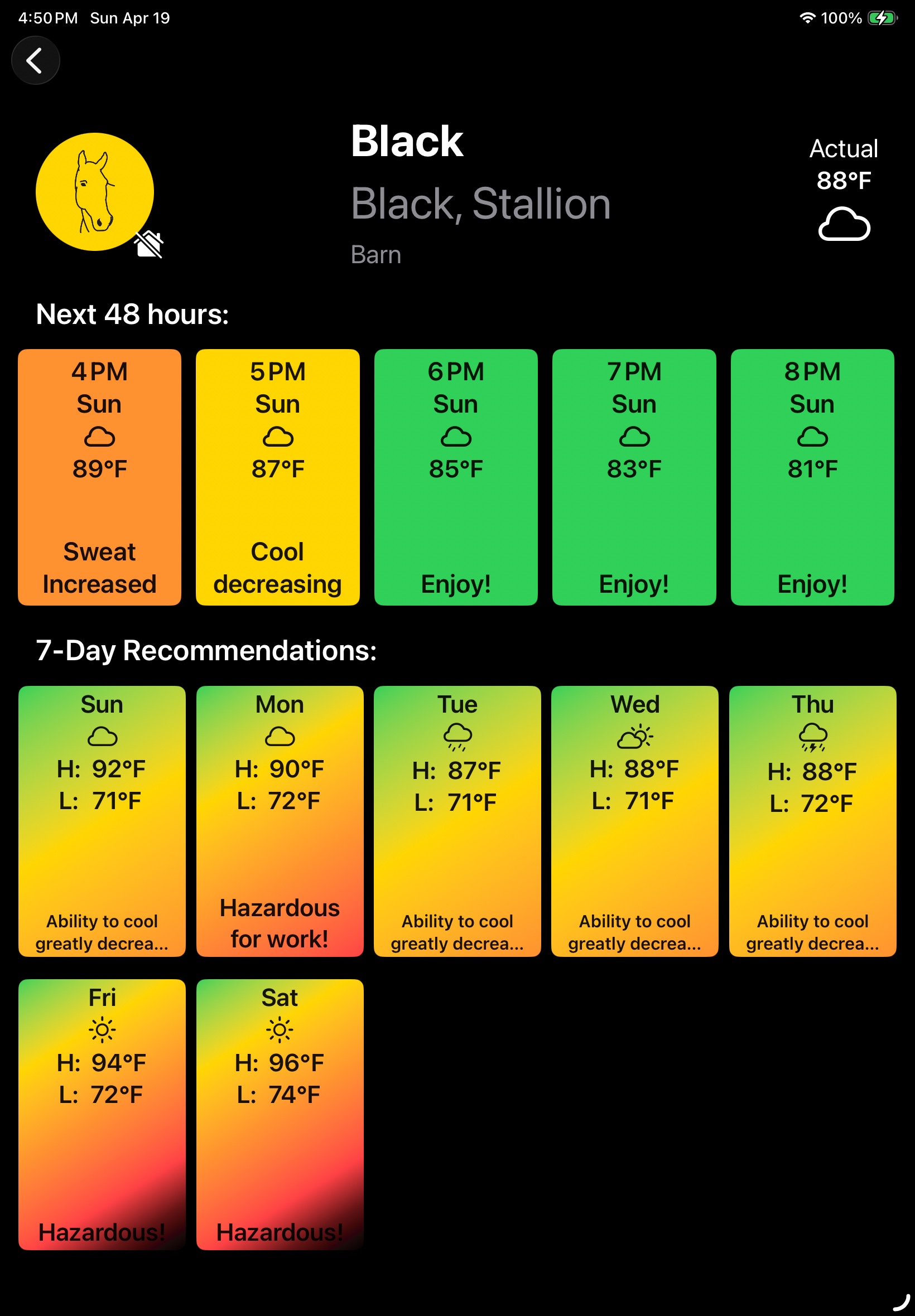
The Recommendations tab shows one card per horse. Each card displays the horse's name, current conditions, and a colour-coded recommendation badge. Tap any card to open the full Recommendation Detail view.
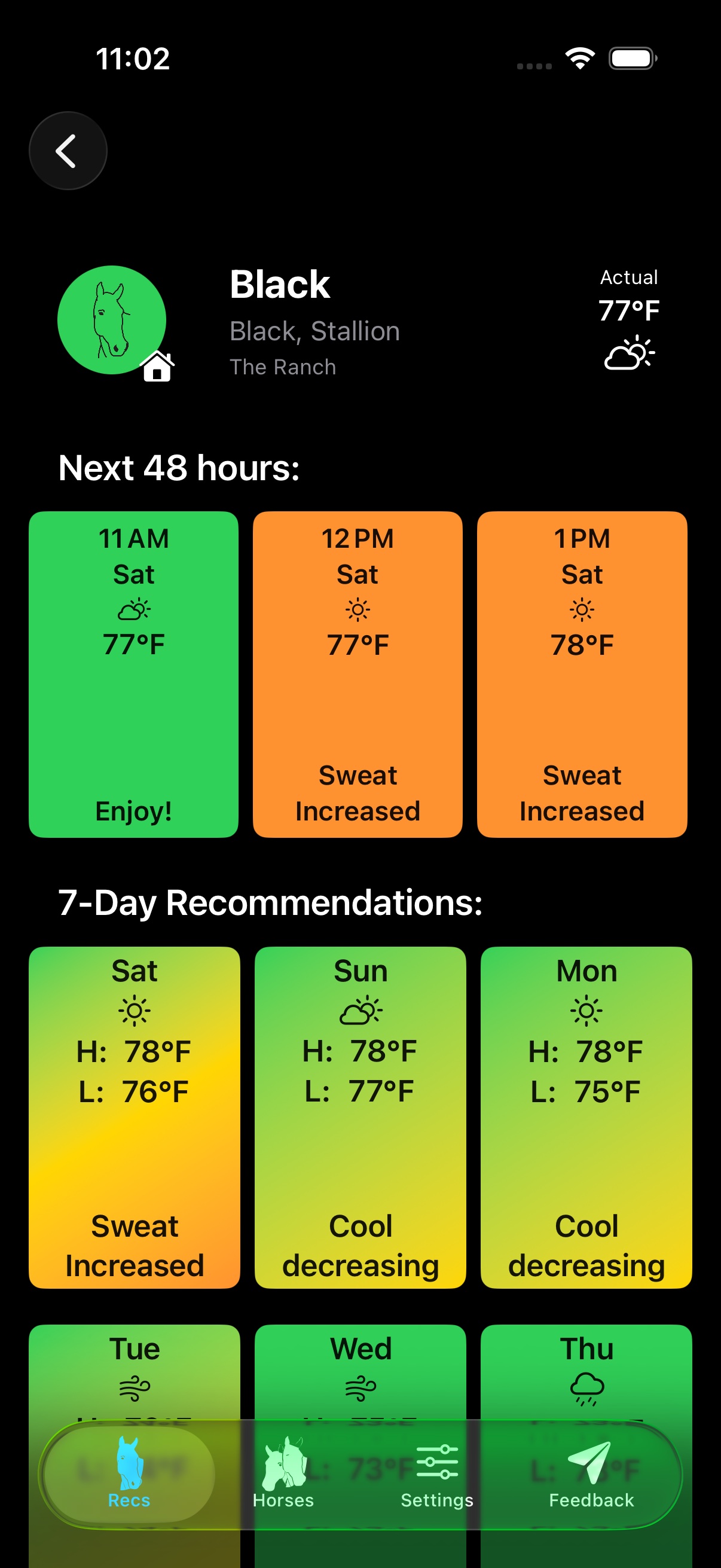
The detail view shows current conditions, a horizontal scroll of hourly forecast cards for the next 48 hours, and a 7-day grid. Tap any hour or day card for full weather detail including temperature, wind, precipitation, humidity, dew point, and UV index.
In very hot conditions, cards shift from orange through red to black as the WBGT rises above safe thresholds.
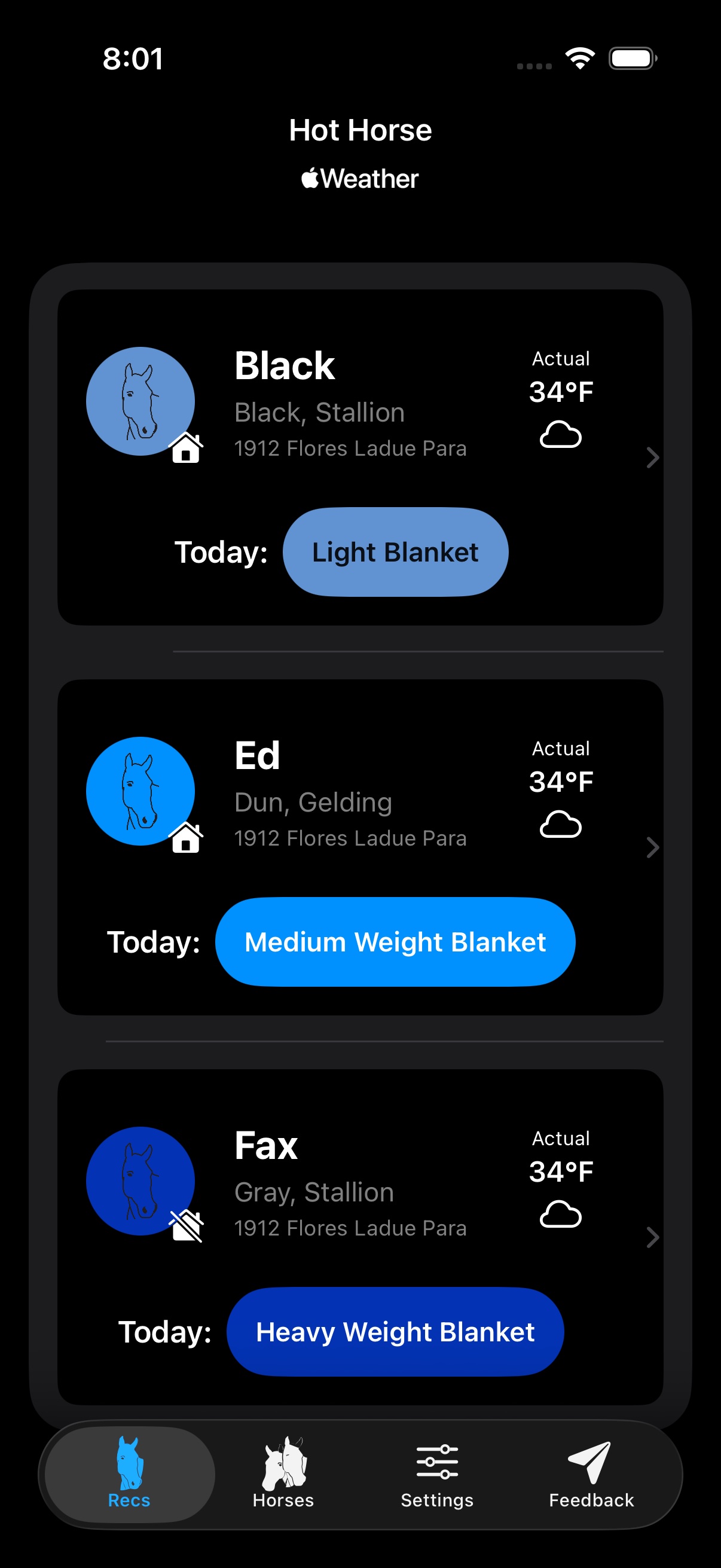
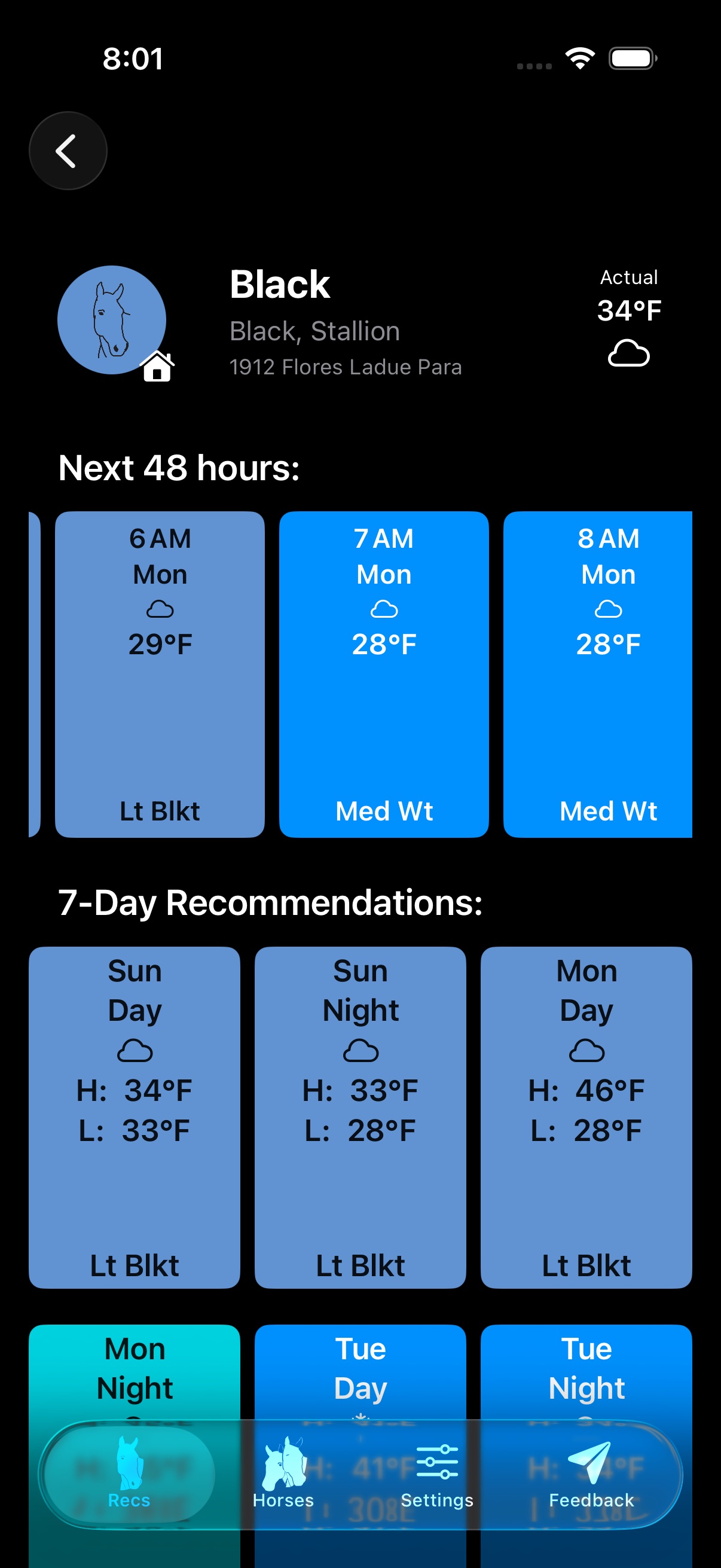
Switch to Blanket mode in Settings to see blanket weight recommendations instead of heat index colours. The same card-based layout applies — one card per horse, with a recommendation badge showing the appropriate blanket weight.
The hourly and 7-day forecasts in blanket mode show colour-coded blanket weight cards ranging from teal (sheet / no fill) through indigo (extra heavy weight), helping you plan blanketing several days ahead.
Horses
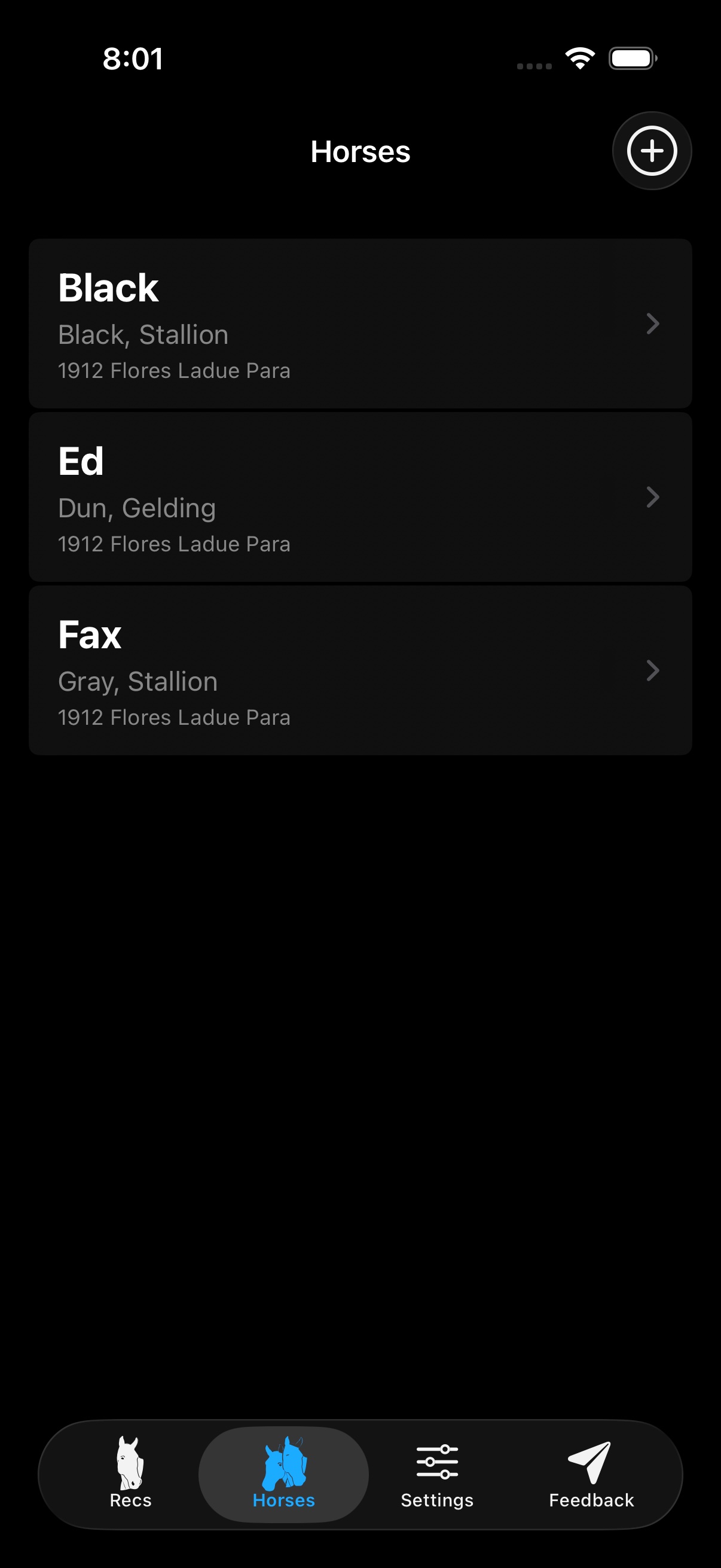
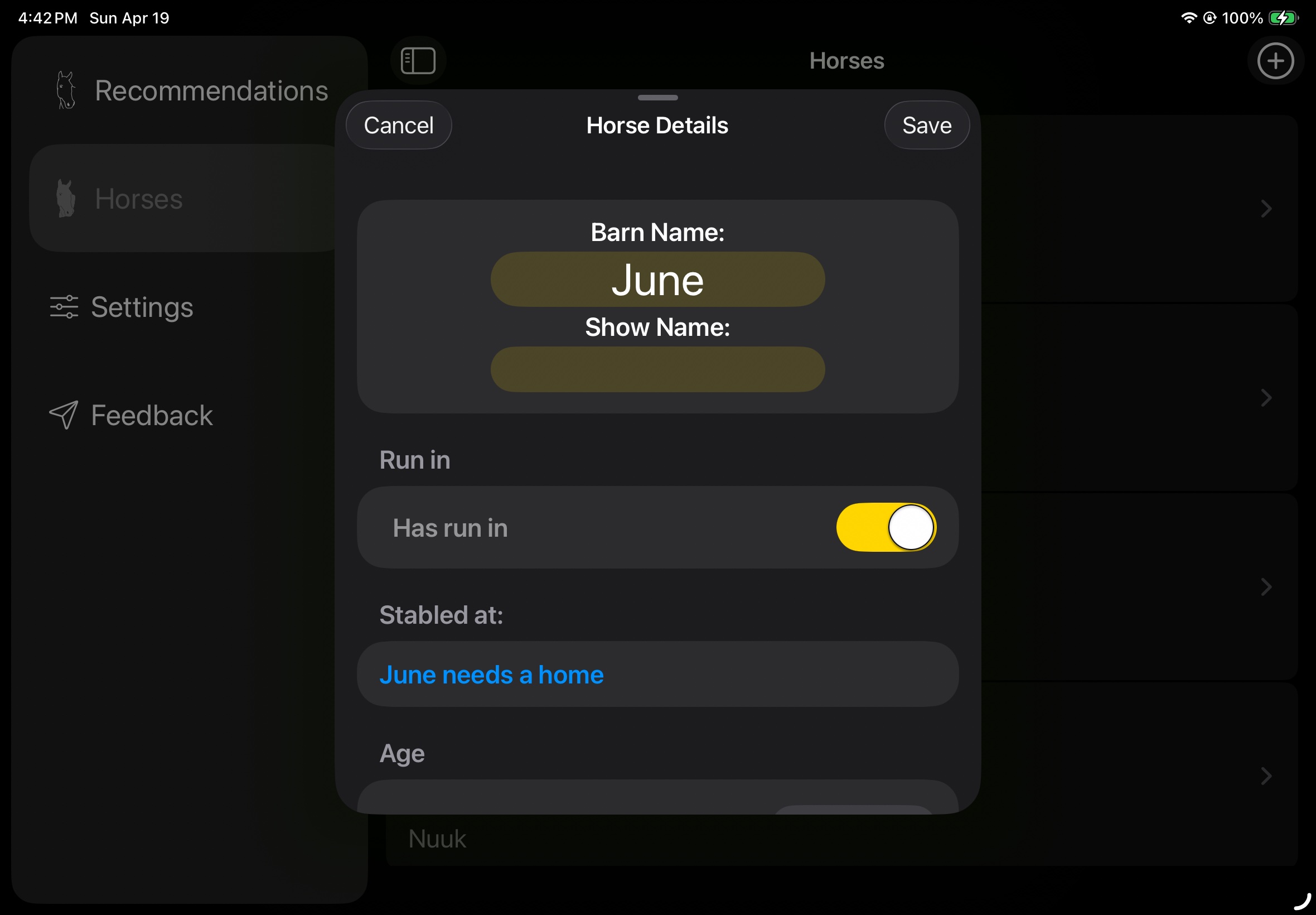
The Horses tab lists all your horses. Tap any horse to view its details. Tap Edit to change its information. Tap the + button at the top right to add a new horse.
Horse details
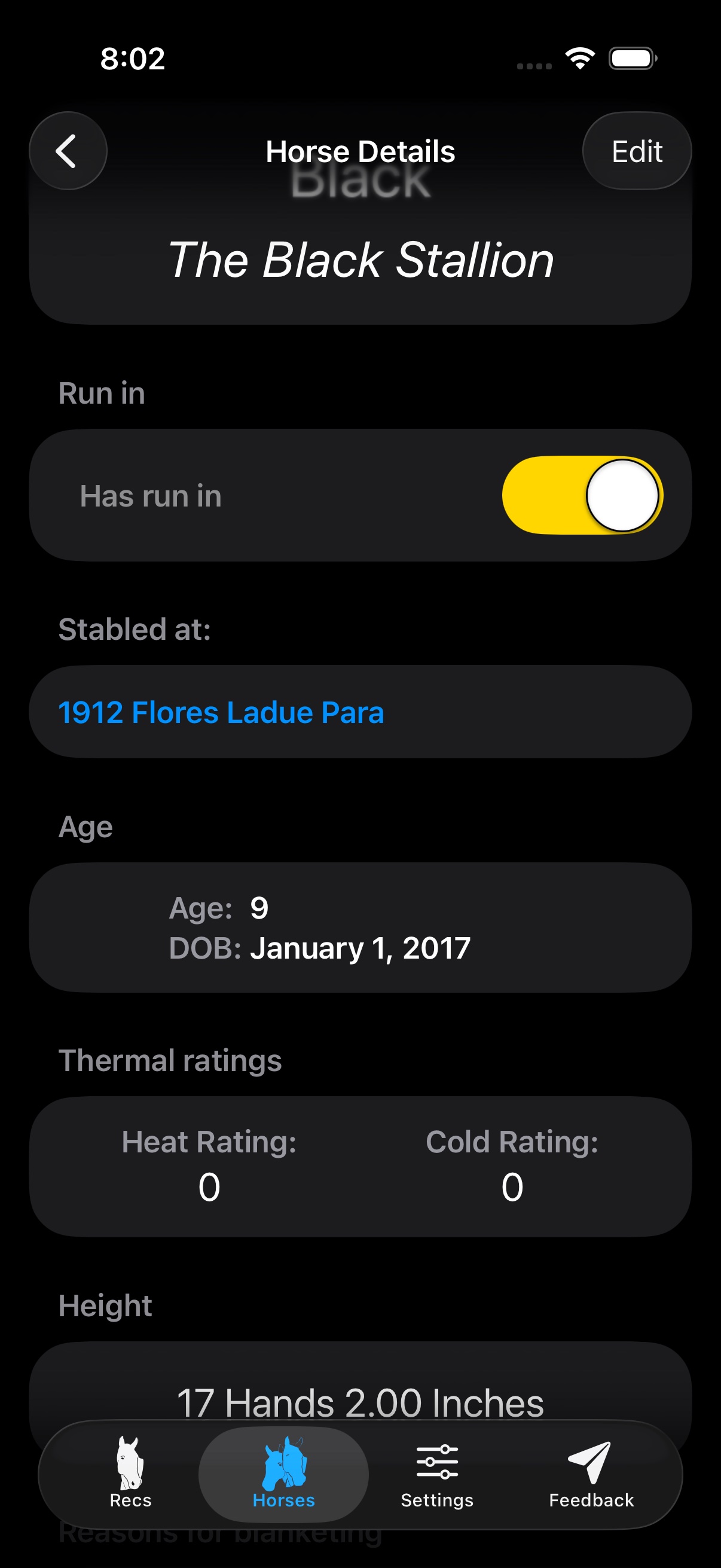
Each horse can be configured with:
Barn Name & Show Name
The barn name appears on recommendation cards. Add a show name if you'd like to track it separately.
Has Run-In
Toggle on if your horse has access to a run-in or shelter. This affects ride window weather thresholds.
Stabled At
Assign the horse to one of your saved addresses. The app fetches weather for that location.
Age & Date of Birth
Age factors into heat and cold tolerance calculations.
Thermal Ratings
Heat Rating and Cold Rating (–10 to +10) let you fine-tune recommendations for horses that run warmer or colder than average.
Height
Recorded in hands and inches.
Deleting a horse
Swipe left on a horse in the list and tap Delete.
Quick Horse Update
Accessible from the Recommendations tab, Quick Horse Update lets you rapidly change Body Condition, Heat Rating, Coat Length, or Cold Rating without opening the full edit view. Changes save automatically when you close the sheet.
Settings
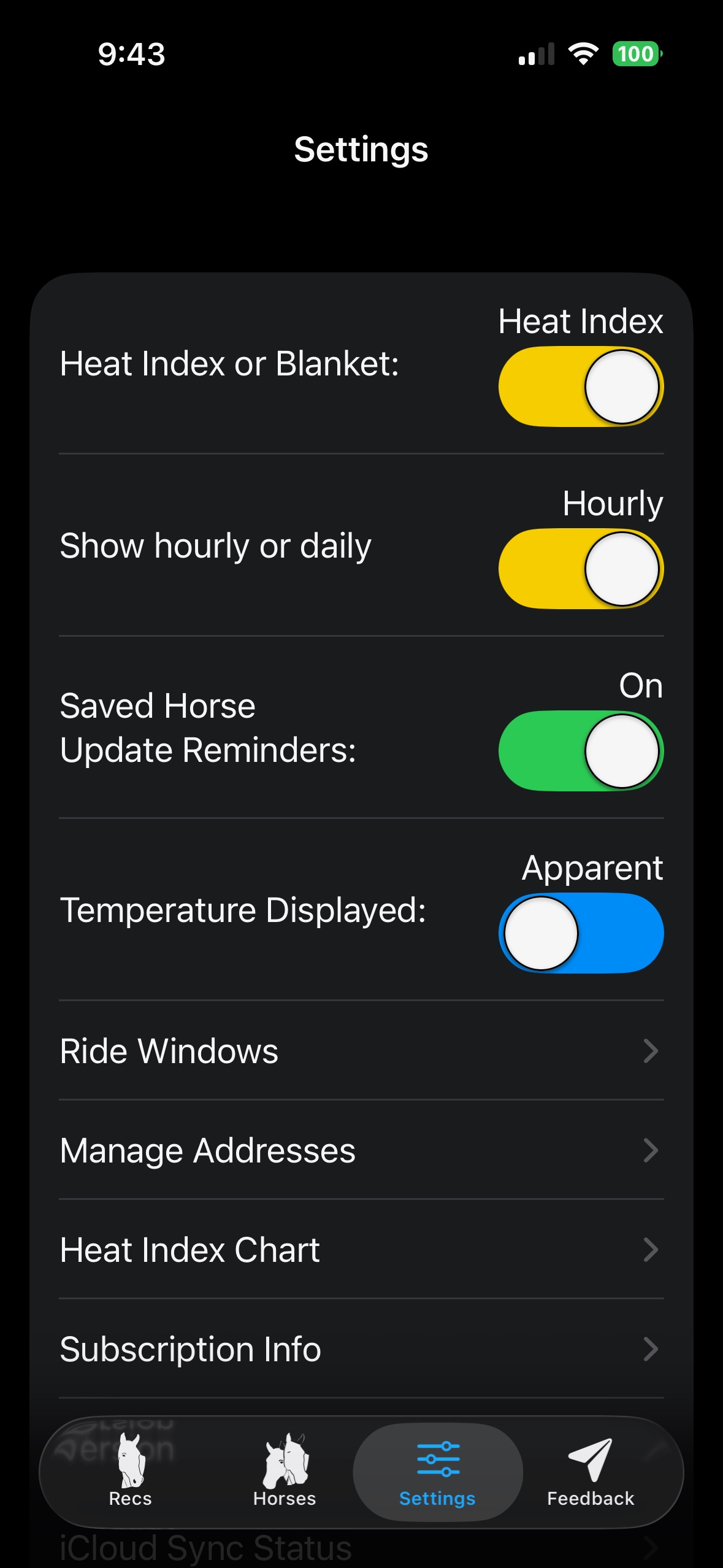
Heat Index or Blanket
Switches the entire app between heat-index recommendations and blanket-weight recommendations.
Show Hourly or Daily
Sets whether the default forecast view shows hourly or daily cards.
Saved Horse Update Reminders
Periodic reminder notifications to keep your horse's details current as the seasons change.
Temperature Displayed
Toggle between actual temperature and apparent (feels-like) temperature.
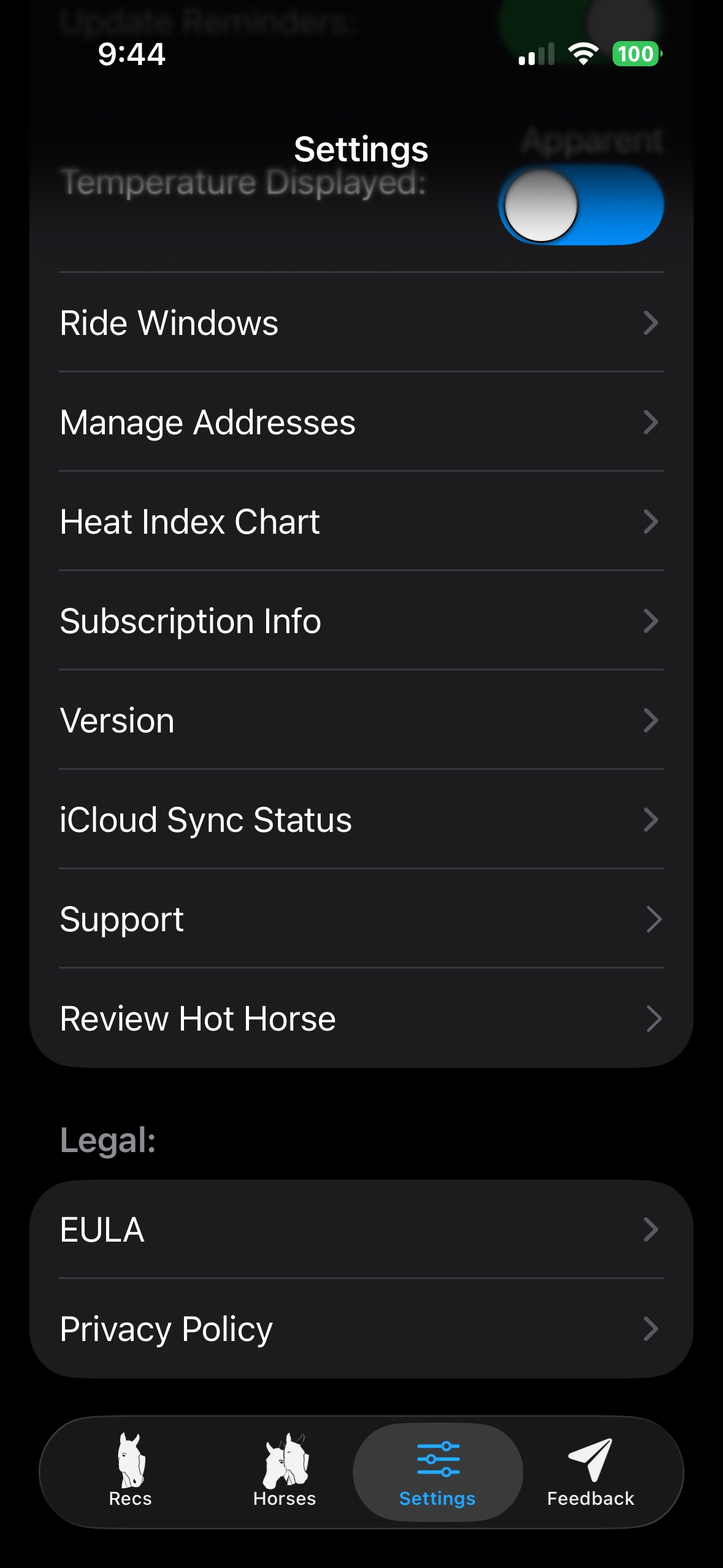
Ride Windows Pro
Opens the Ride Windows and riding notification settings. See the Ride Windows section below.
Manage Addresses
View, add, edit, delete, and favourite your saved locations. Mark an address as having an indoor arena to allow ride windows even when precipitation is forecast.
Heat Index Chart
A reference chart explaining each colour level and its meaning for riding safety.
Subscription Info
View your current subscription or purchase Hot Horse Pro. Tap Restore Purchases if you've previously subscribed.
iCloud Sync Status
Shows the current CloudKit sync state. Tap for troubleshooting information if sync is unavailable.
Ride Windows Pro
Ride Windows notify you when upcoming weather conditions match your configured riding schedule. Set it up once and Hot Horse will alert you before each qualifying ride window — so you never miss a good day to ride.
Configuration
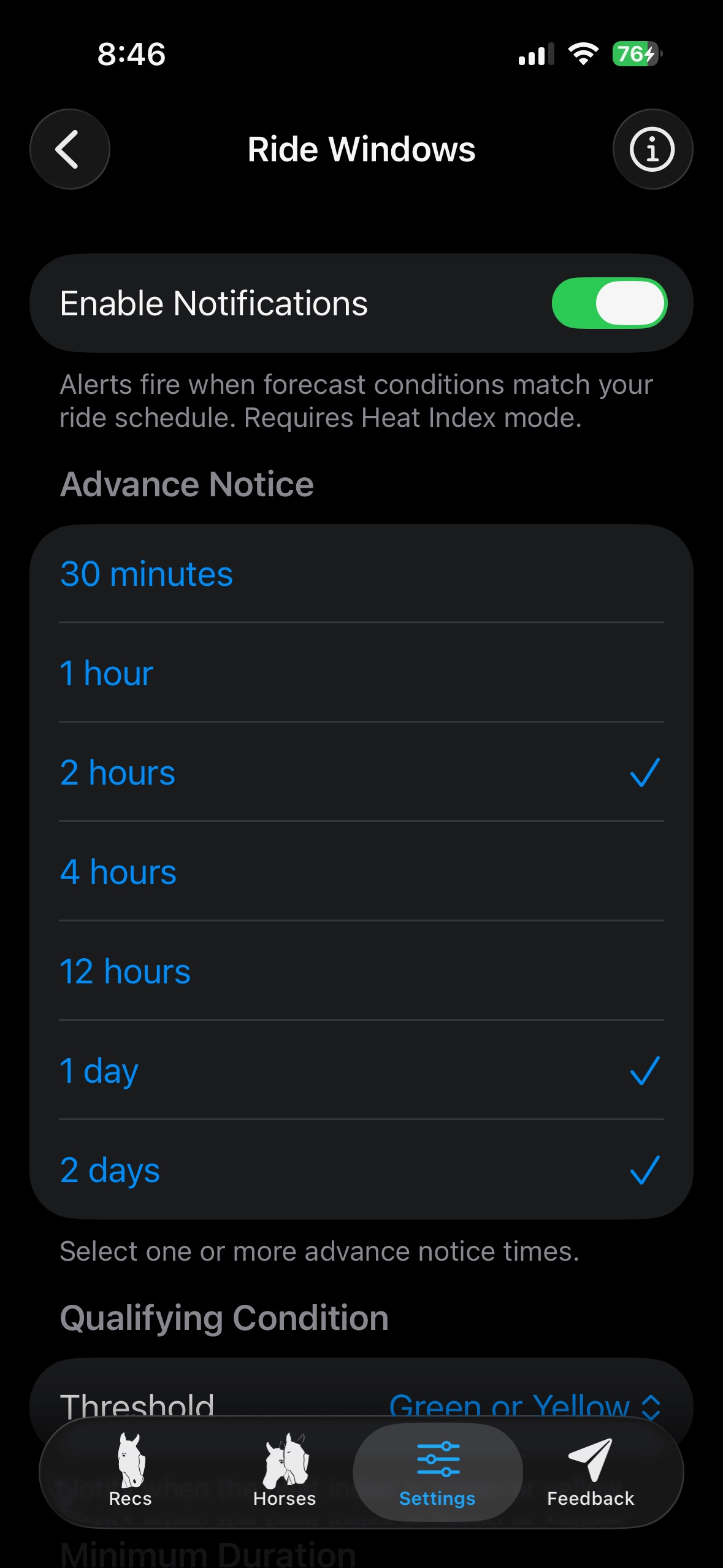
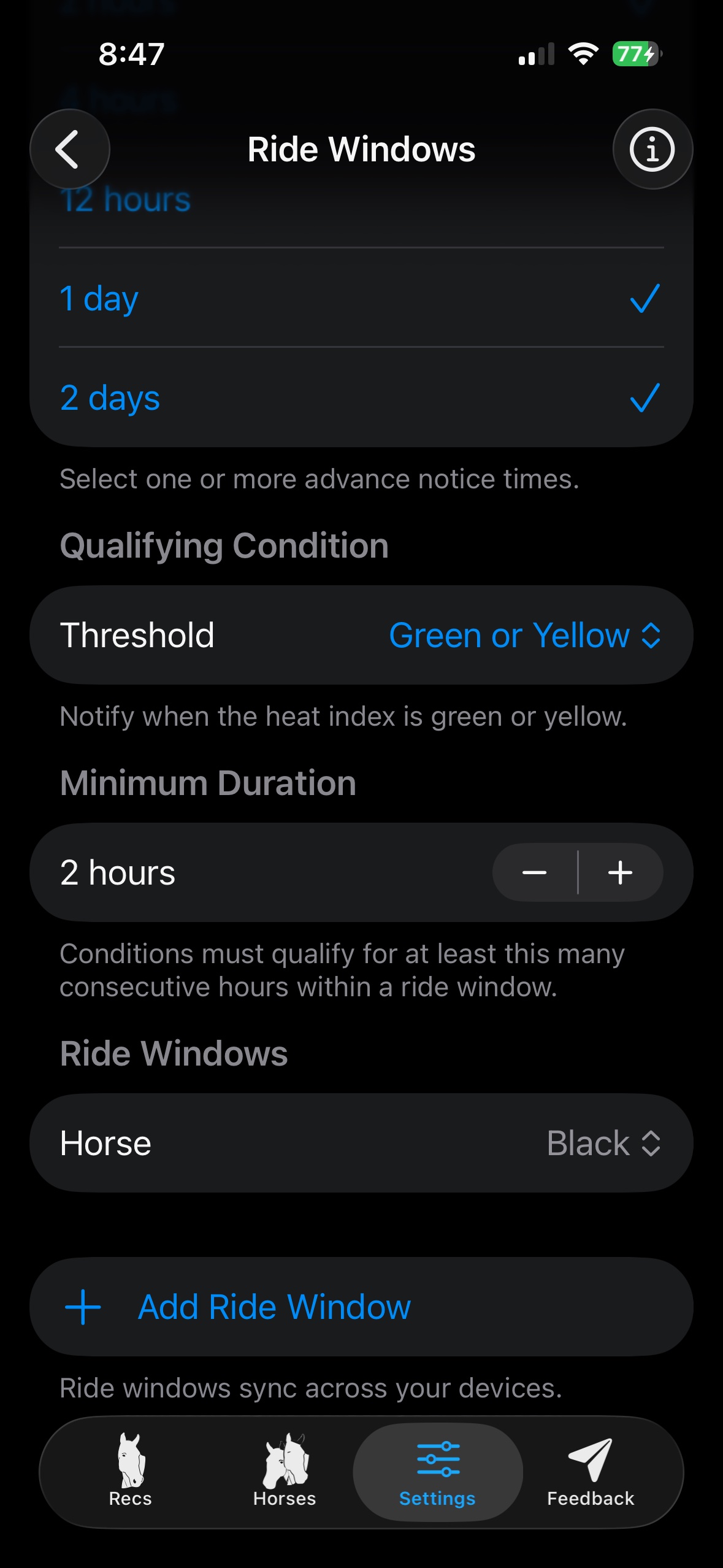
Enable Notifications
Master toggle. Requires Heat Index mode to be active. Requests notification permission on first enable.
Advance Notice
Choose how far ahead you want to be notified — options include 30 minutes, 1 hour, 2 hours, 4 hours, 12 hours, 1 day, and 2 days. You can select multiple.
Qualifying Condition (Threshold)
Set the maximum heat index level that qualifies as a ride window: Green only, Green or Yellow, or up to Orange.
Minimum Duration
How many consecutive qualifying hours are required to trigger a notification. Adjustable from 1 to 6 hours.
Add Ride Window
Define the time range you're available to ride for each horse. Ride windows sync across your devices via iCloud.
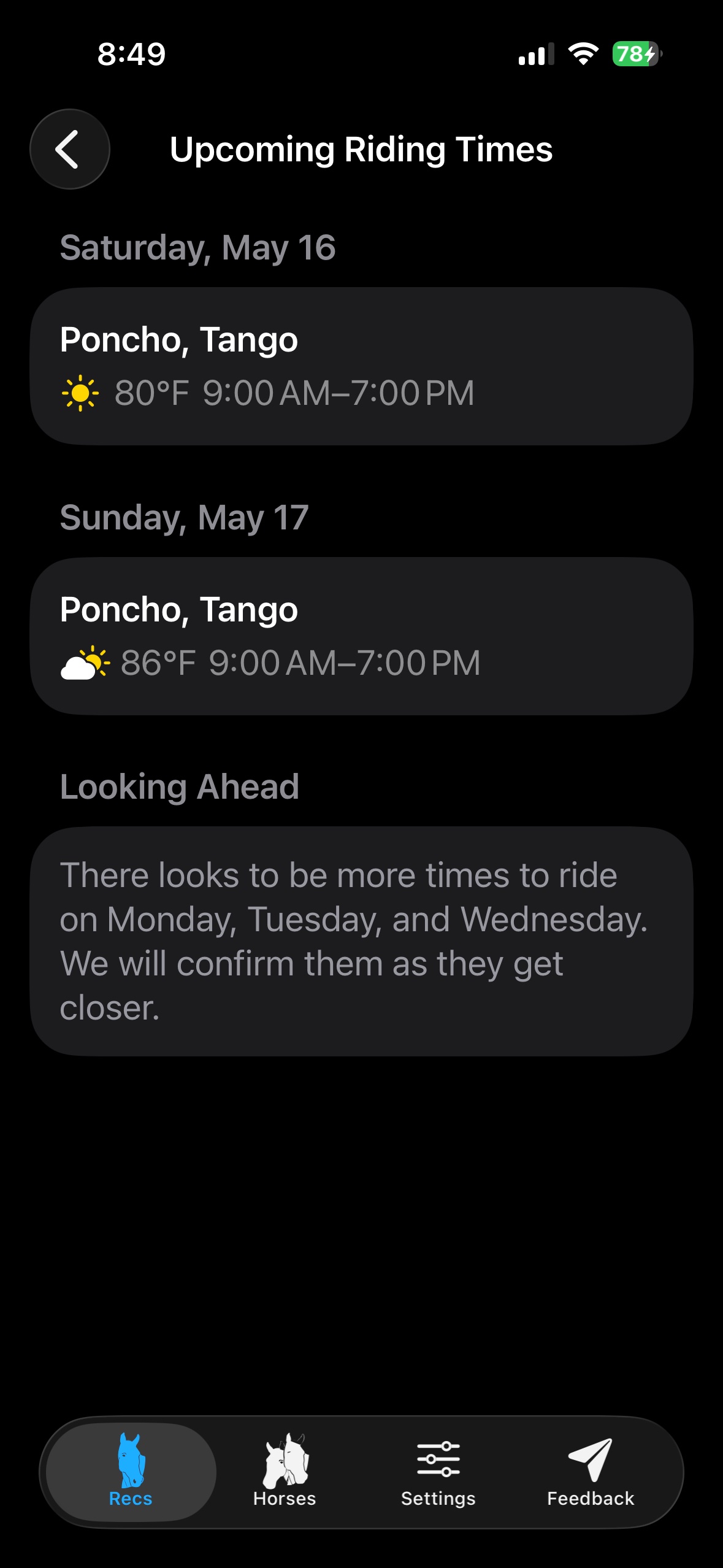 Upcoming Riding Times
When qualifying windows are found, an Upcoming Riding Conditions card appears at the top of your Recommendations list, and a dedicated Upcoming Riding Times view shows confirmed windows for the next two days plus a Looking Ahead summary for the days beyond.
iPad
The iPad experience is functionally identical to iPhone but uses a sidebar navigation instead of a bottom tab bar. The sidebar is always visible in landscape and slides in from the left in portrait. All the same views, gestures, and settings apply — detail views open side-by-side rather than pushing onto a navigation stack.
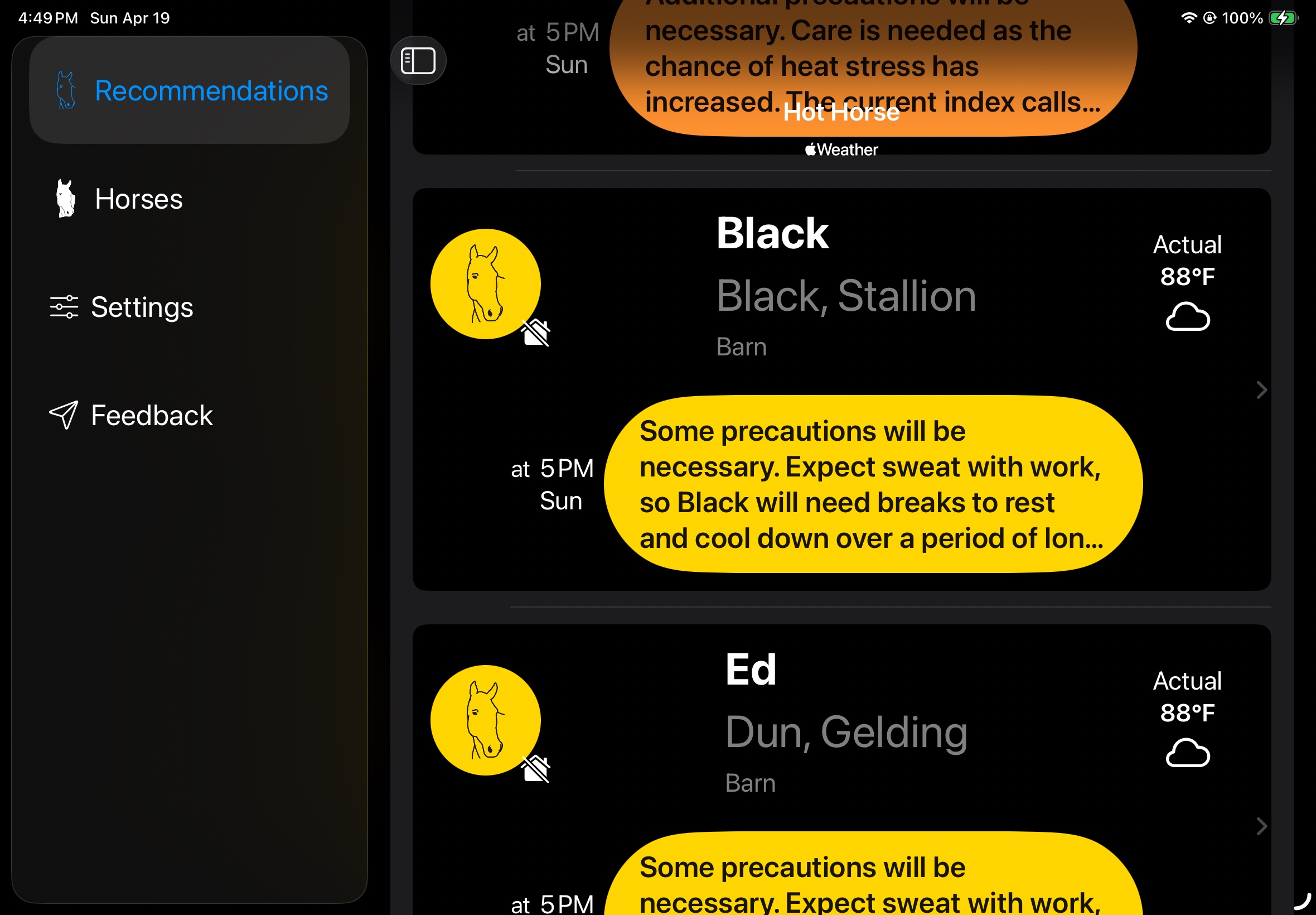 iPad — sidebar navigation with heat index recommendations
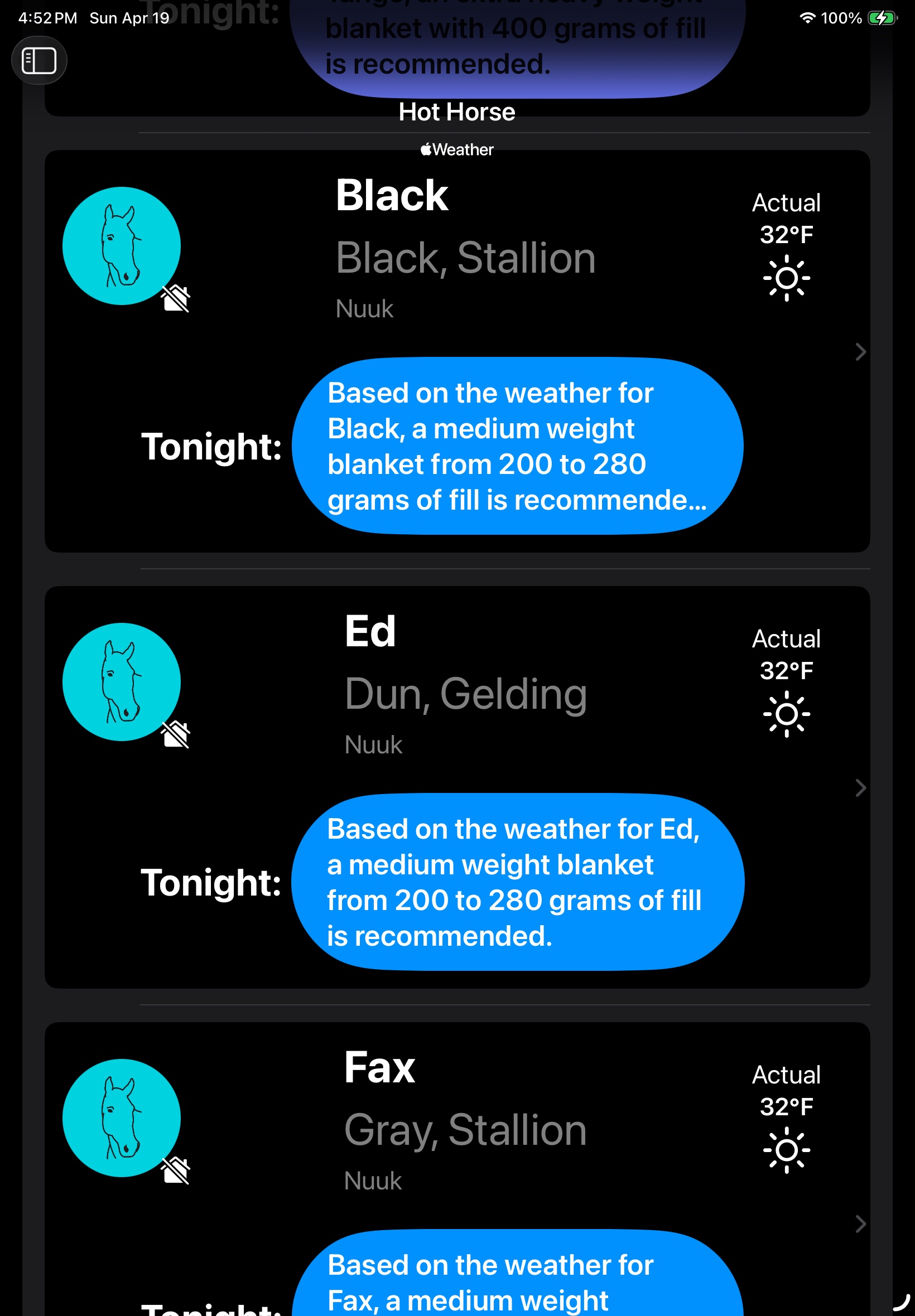 iPad — blanket mode with full-width recommendation cards
Apple Watch
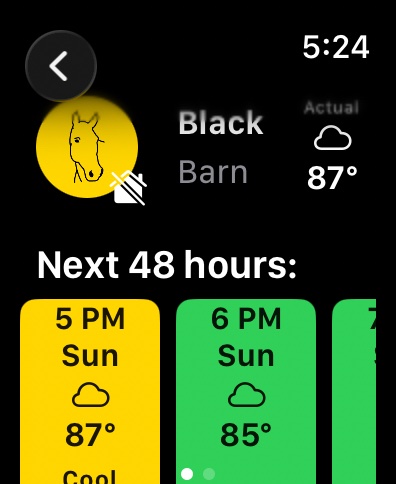
The Watch app uses a two-tab layout. Swipe left or right to switch between the Cards tab and the Settings tab.
Hourly detail on Watch
Watch face complications
Cards tab
Swipe through the cards to see each horse's current recommendation — name, current index colour, a short recommendation summary, and current conditions. Tap a card to see hourly detail: a scrollable list of upcoming hours with colour-coded index values. Tap any hour for full weather detail. Pull down to refresh.
Settings tab
Switch between Heat Index and Blanket mode, change the default forecast view, pick which saved address to use for each horse, and enable or disable ride window notifications on the Watch. Settings changed on the Watch sync back to iPhone via iCloud.
Watch Complications
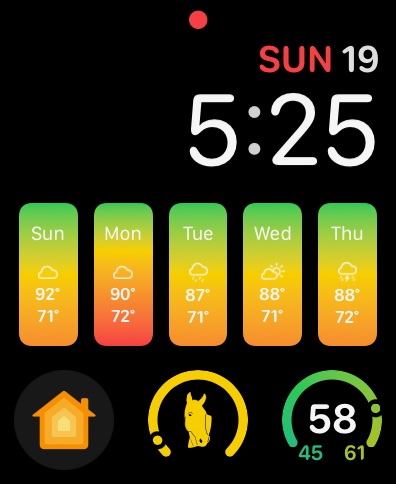
Hot Horse offers three complications for supported watch faces. Tap any complication to jump directly into the app.
Current
Shows the current heat index colour and value for your selected horse.
Hourly
Shows an upcoming hourly forecast snapshot.
Daily
Shows an upcoming daily forecast snapshot. The watch face screenshot above shows the daily complication in the top strip.
WBGT Heat Index Chart
Hot Horse uses the WetBulb Globe Temperature (WBGT) index to assess heat stress risk for horses. Here is what each level means:
Blanket Weight Chart
In Blanket mode, Hot Horse recommends one of five blanket weights based on conditions and your horse's individual profile:
Standard vs Pro
Standard (Free)
Current conditions only
Single heat index or blanket recommendation
Weather refreshes every 4 hours
Recommendations for an average horse
Pro Pro
Hourly forecasts — next 48 hours
Daily forecasts — next 7 days
Tappable hourly & daily detail cards
Weather refreshes every hour
Ride Windows & riding notifications
Upcoming Riding Conditions card
Subscribe or restore a previous purchase from Settings → Subscription Info. Subscriptions are managed through the App Store — you can cancel anytime from iPhone Settings → Apple ID → Subscriptions.
iCloud & Data Privacy
If iCloud is unavailable, you will see a banner in Settings. Tap it for troubleshooting steps, or check iOS Settings → Apple ID for iCloud status.
Troubleshooting
Weather Service unreachable
No internet connection available.
→ Check your network connection and try again.
Location permission denied
Location access was not granted to Hot Horse.
→ Go to iOS Settings → Hot Horse → Location and set to "While Using the App".
Unable to get location
GPS could not determine your position.
→ Enter an address manually using the search field.
Not logged in to Apple account
iCloud is signed out on this device.
→ Sign in to iCloud in iOS Settings → Apple ID.
iCloud sync error
iCloud sync is not working correctly.
→ Check for an error banner in iOS Settings → Apple ID and resolve any iCloud issues there.
Failed to create address
A temporary error occurred while saving the address.
→ Tap OK and try again. If the error persists, contact support.
Your horses have arrived
iCloud sync completed after a delay — this is a success notification, not an error.
→ Tap OK. Your horse list and addresses are now up to date.
Still need help?
Use the Feedback tab (paper plane icon) inside the app — it automatically includes your device and version information which helps us resolve issues faster. Or send us an email directly.
[email protected]We're a small team and read every message.